

Patreon has no direct checkout link — patrons always join through your campaign page, not a PayGlue-generated URL. See Buy Button below for how this affects that feature.
Prerequisites
- A Patreon Creator account with an active campaign at patreon.com/portal
- A Ghost blog connected in PayGlue (Connect Ghost)
Steps
1
Register a client on Patreon
In the Patreon developer portal, register a client for your campaign and generate a Creator’s Access Token.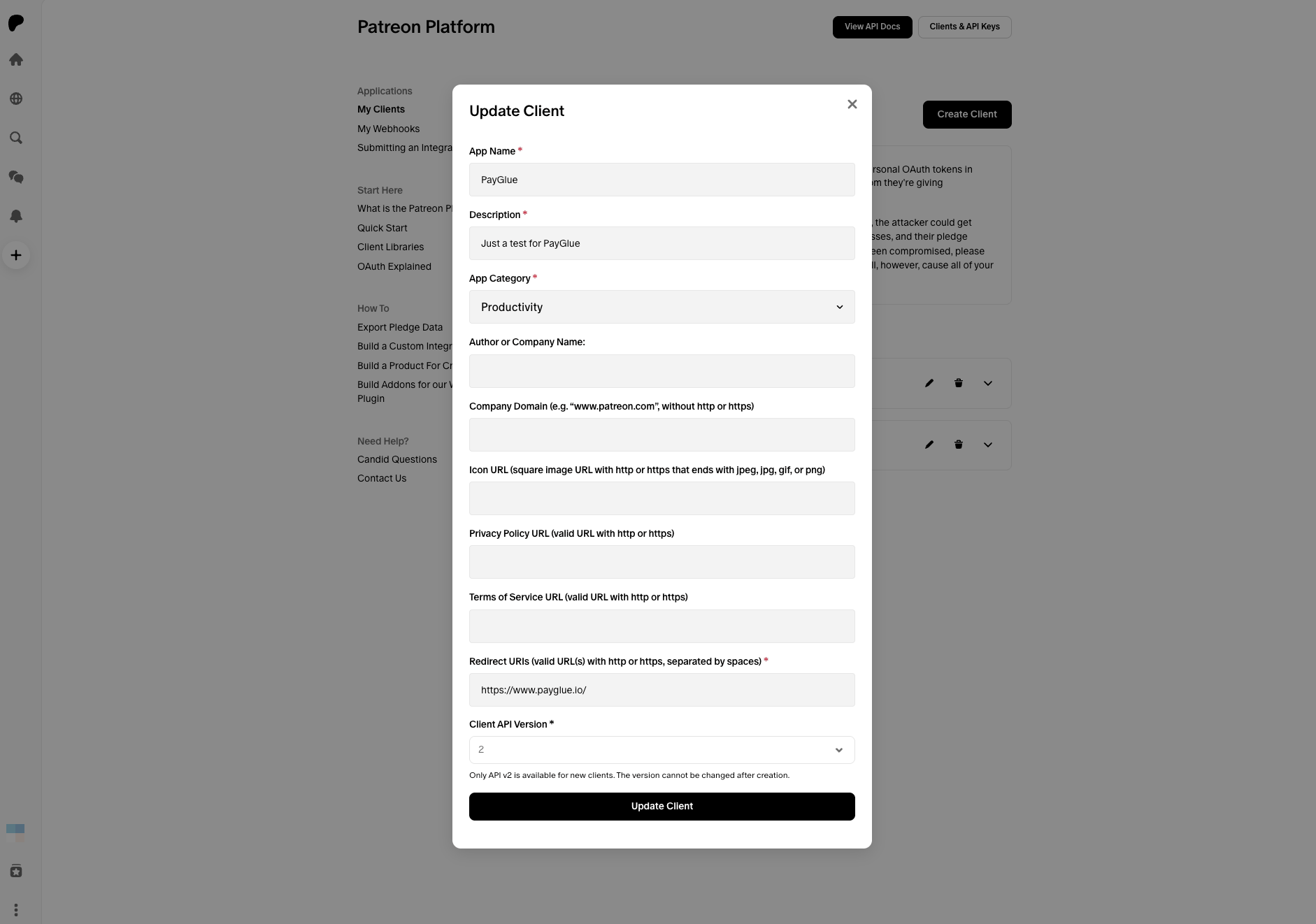
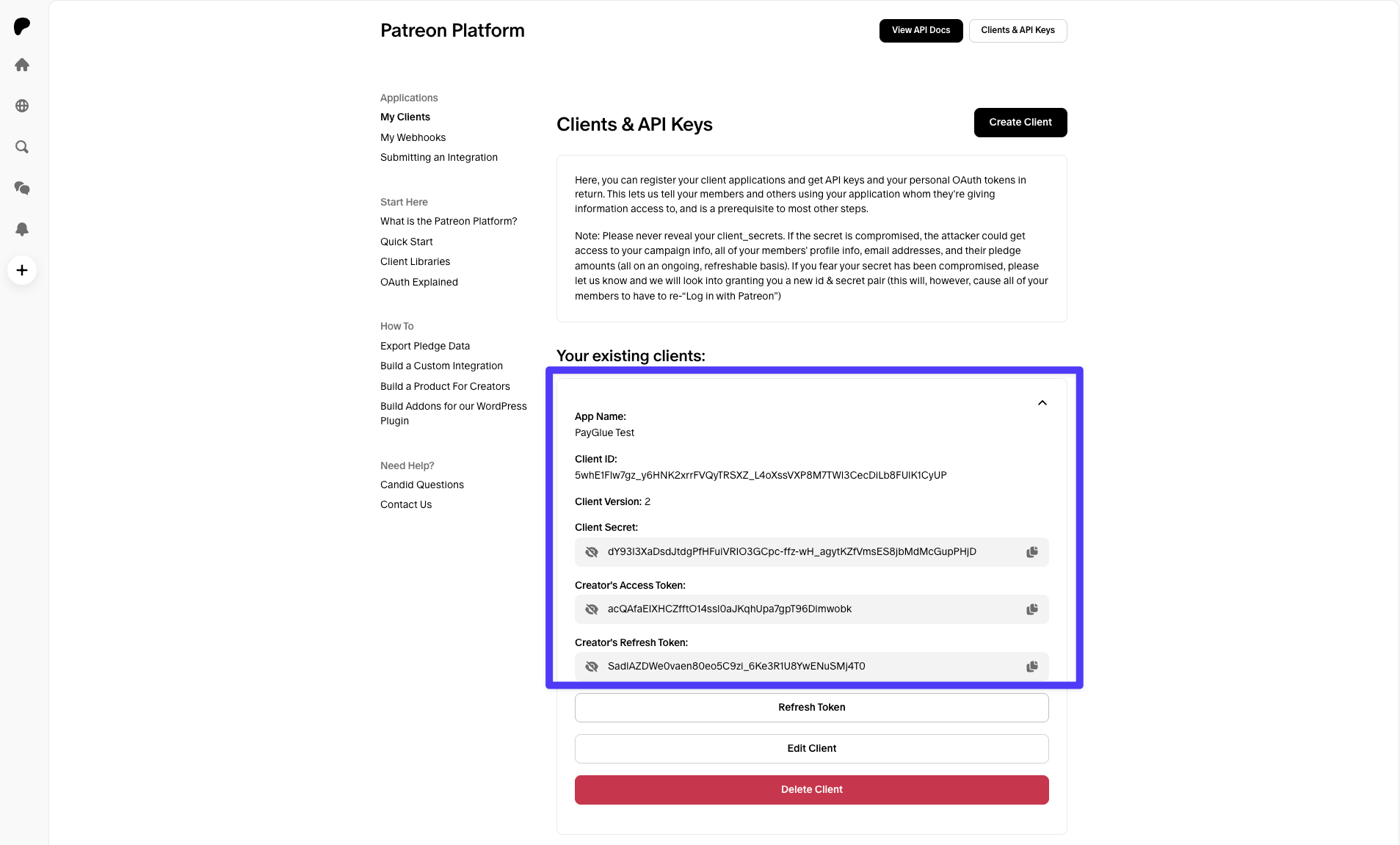
2
Enter the Creator's Access Token in PayGlue
n your PayGlue dashboard, go to Providers and click Connect Patreon. Paste the Creator’s Access Token into the Access Token field.
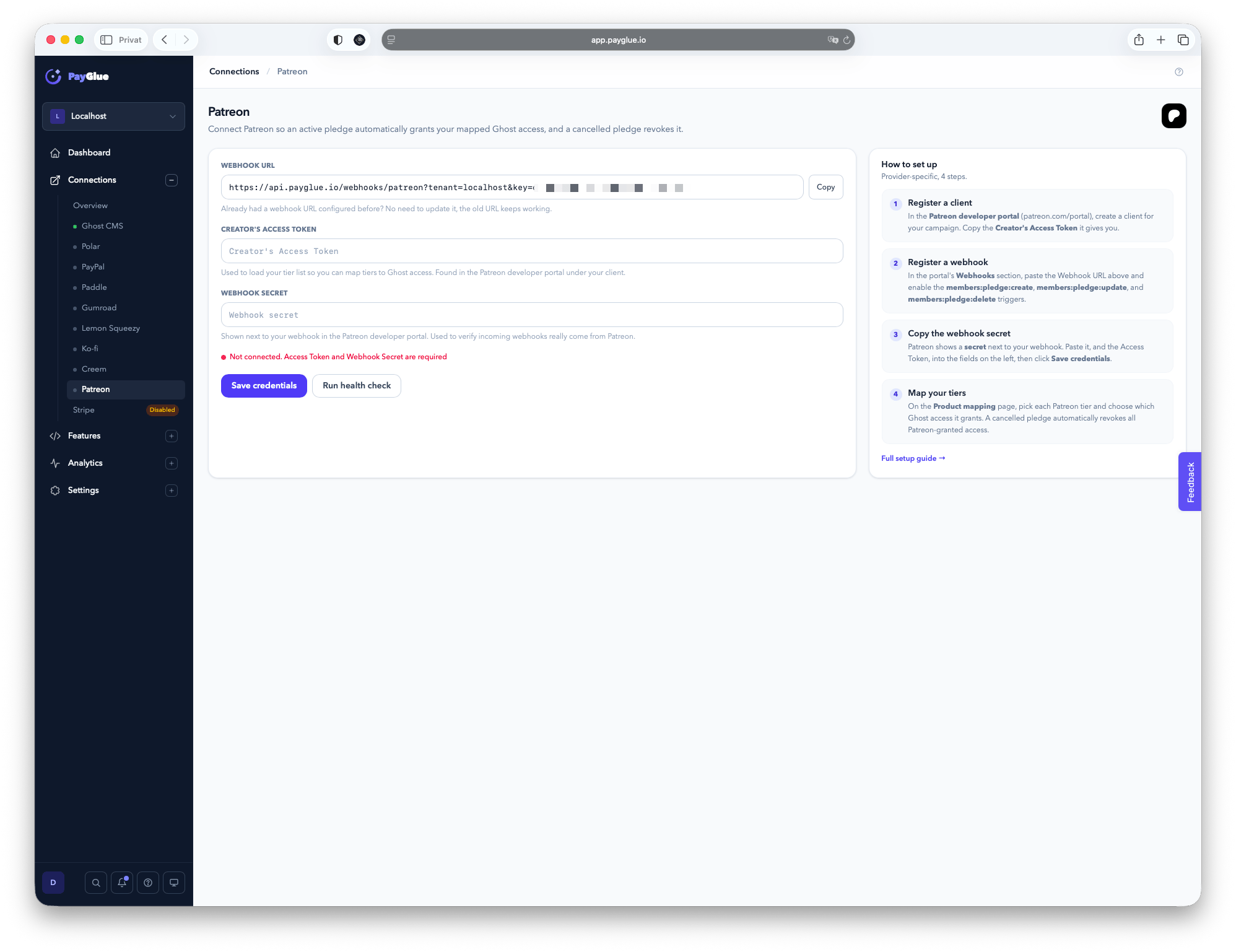
This token is also used to fetch your campaign’s tiers, so they appear as a dropdown when you create a mapping — no manual tier entry required.
3
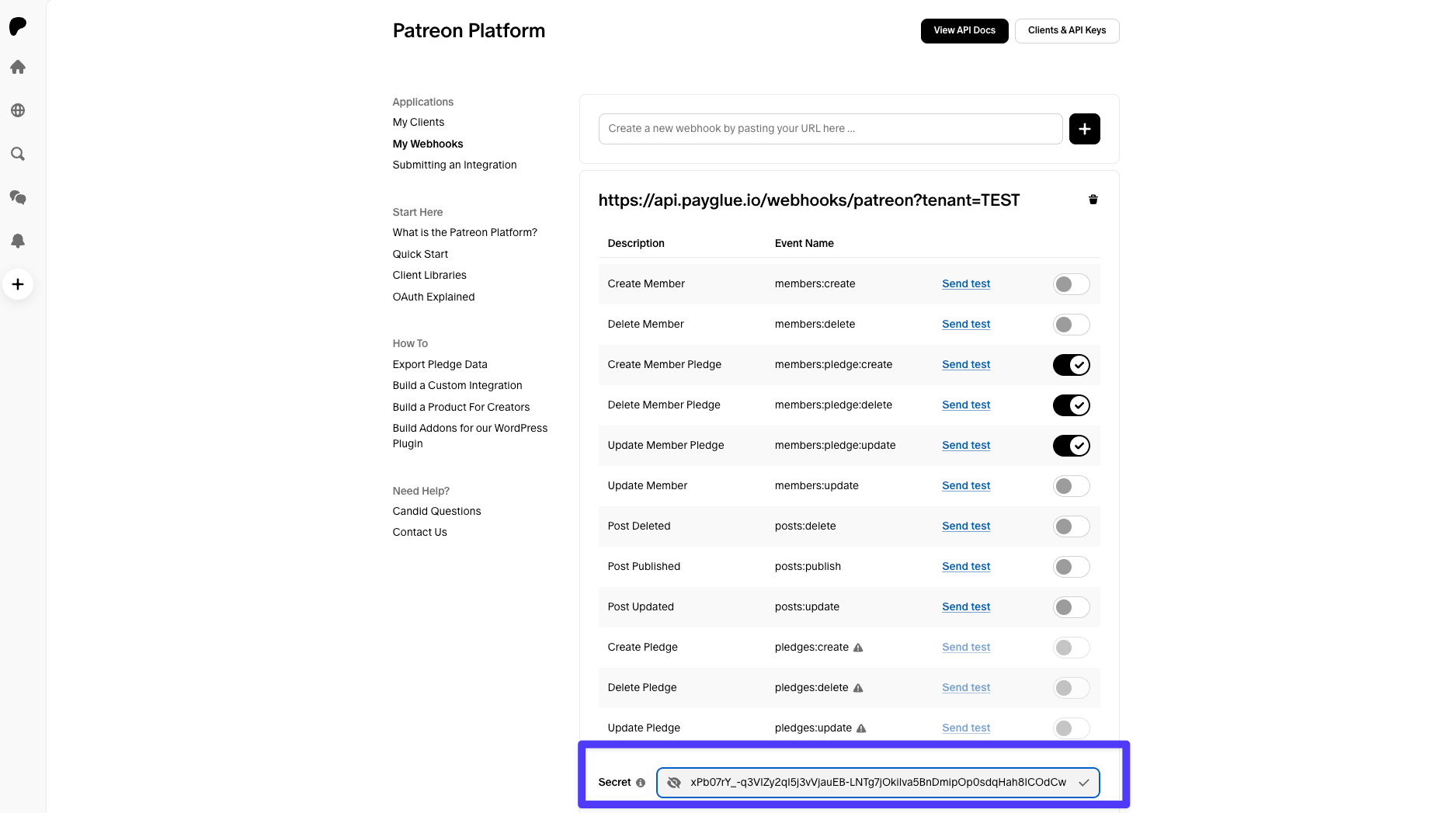
Register a webhook on Patreon
Still in the developer portal, register a webhook pointing at the Webhook URL shown on the PayGlue Patreon connection page, and enable these triggers:
-
members:pledge:create -
members:pledge:update -
members:pledge:delete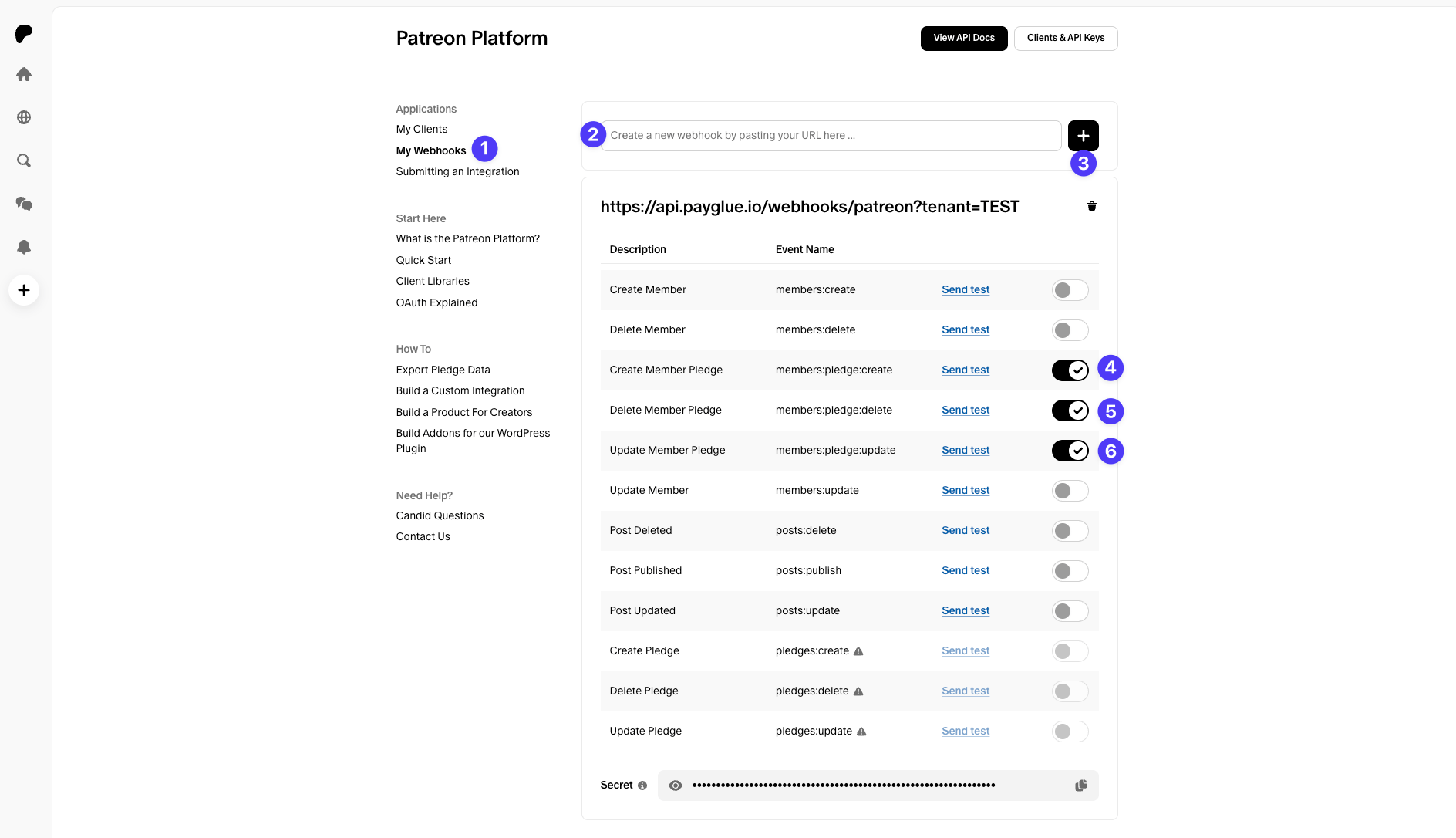
4
Copy the Webhook Secret into PayGlue
Patreon shows a Webhook Secret for the webhook you just created. Copy it into the Webhook Secret field on the PayGlue Patreon connection page, then click Save credentials.
5
Run a health check
Click Run health check to confirm the webhook secret is saved. Patreon has no API endpoint PayGlue can ping to confirm delivery — trigger a real pledge or a test webhook from Patreon’s dashboard to confirm end-to-end delivery.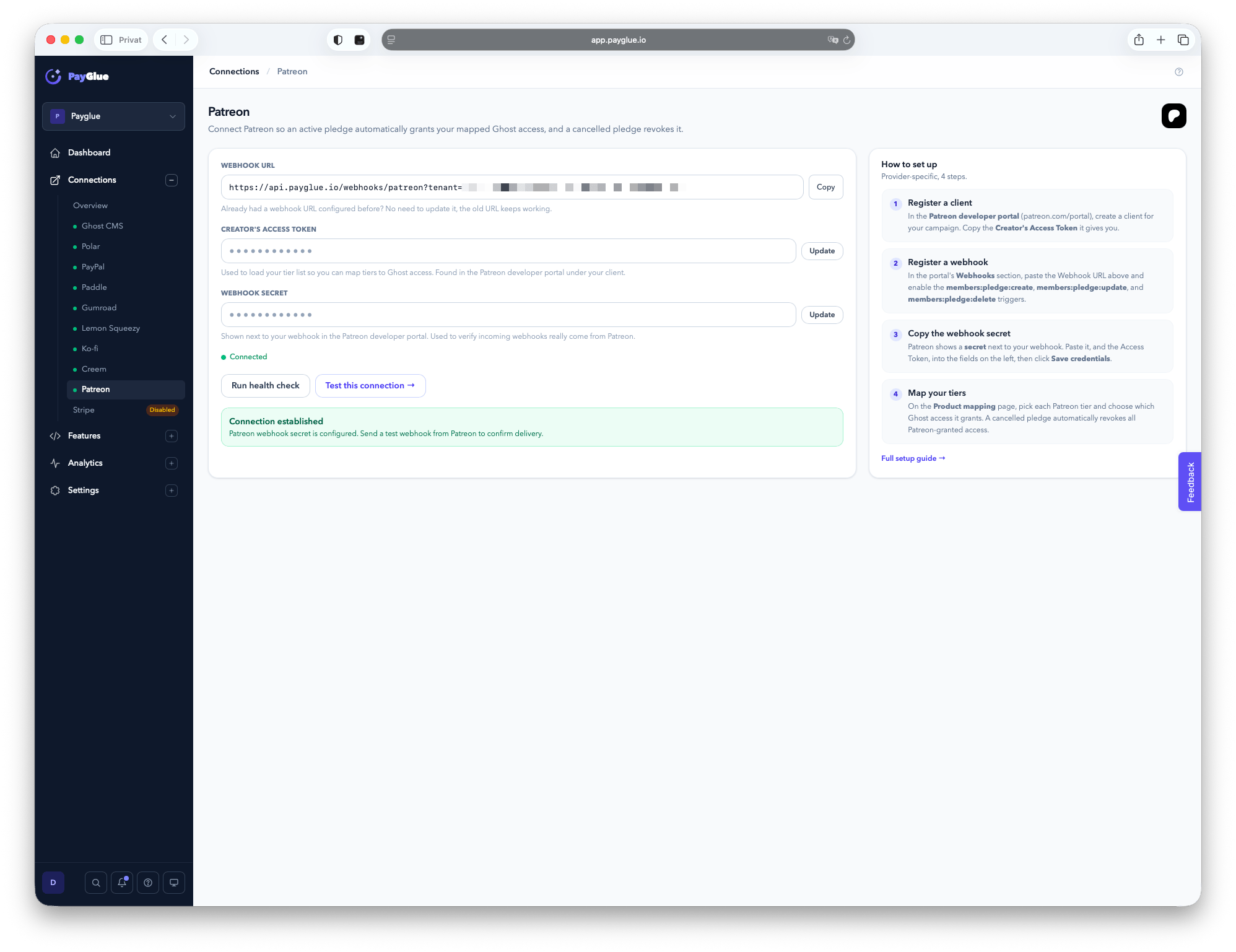
6
Create a mapping
Open Mappings and select a Patreon tier from the dropdown (fetched automatically from your campaign). Choose which Ghost newsletter to subscribe the patron to and which welcome email to send, then save.From this point on, every pledge join, tier change, or cancellation triggers automatic Ghost access changes.
7
Test your setup
Send a test webhook from Patreon’s developer portal, or have a real patron join. Then open Analytics → Webhook Events in your PayGlue dashboard — the event should appear with status Processed and the patron’s email should appear as a new member in Ghost Admin.
Buy Button
Because Patreon has no checkout link to generate, the Buy Button editor does not offer “Link to a product” for Patreon. Instead, turn that option off and paste your campaign’s join URL directly. Ghost access is still granted automatically through the tier-mapping webhook flow above — the button just links to your Patreon page instead of a PayGlue-hosted checkout.Supported events
Patreon sends the event type in theX-Patreon-Event header rather than the payload body:
On cancellation, Patreon’s payload doesn’t reliably include which tier the patron was on, so PayGlue revokes every active Patreon-sourced mapping for that member rather than guessing a single tier. If a patron holds several Patreon-mapped tiers, all of them are removed together.
Troubleshooting
Connection stays “Not connected” after saving A Patreon connection needs both the Creator’s Access Token and the Webhook Secret. If tiers don’t appear in the mapping dropdown, the Access Token is likely missing thecampaigns.members[email] scope — regenerate it from the developer portal with that scope enabled.
Health check passes but no events arrive
The health check only confirms the webhook secret is saved, not that Patreon is delivering webhooks. Send a test webhook from the Patreon developer portal, then check Analytics → Webhook Events in PayGlue.
Ghost member is not created after a pledge
Open the event in Analytics → Webhook Events and check the error message. A missing email in the payload usually means the Access Token lacks the member-email scope — see above.
Buy Button shows a note instead of a checkout link
This is expected — Patreon has no direct checkout URL. Turn off “Link to a product” and paste your campaign’s join page URL instead.
Webhook signature verification
Patreon signs each webhook with an HMAC-MD5 digest of the raw request body, keyed with your Webhook Secret, sent in theX-Patreon-Signature header. PayGlue recomputes this digest and rejects the request if it doesn’t match. Keep your Webhook Secret private — anyone who has it can send PayGlue fake Patreon events for your tenant.