

What you need
- Your Ghost Admin URL (e.g.
https://yoursite.ghost.io) - A Ghost Admin API key with Staff permissions
Steps
1
Open Ghost Admin
Go to your Ghost dashboard and navigate to Settings > Integrations.
2
Create a custom integration
Click Add custom integration, give it a name (e.g. PayGlue), and copy the Admin API key.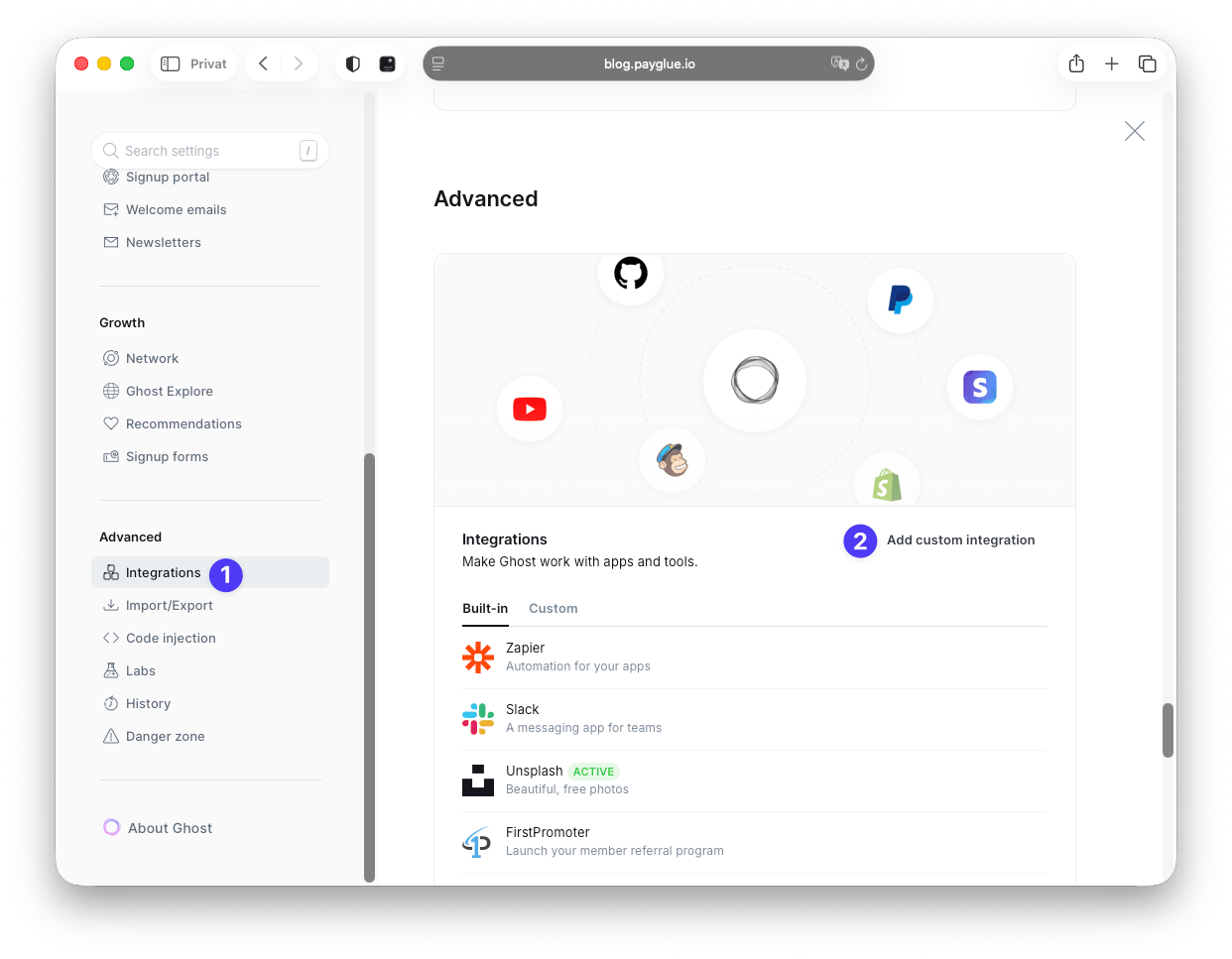
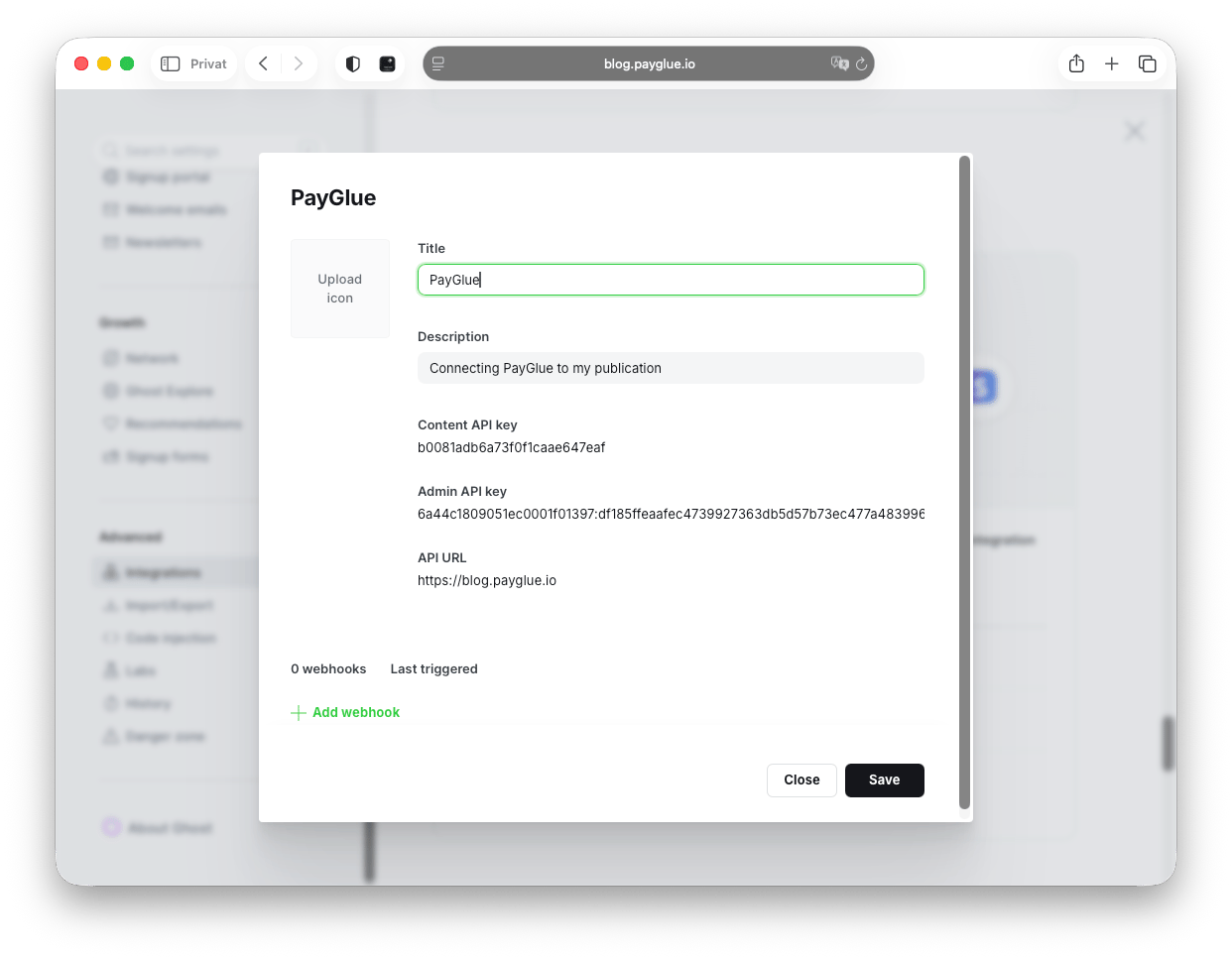
3
Add to PayGlue
In your PayGlue dashboard, go to Connection > Ghost CMS and paste the Admin URL and API key.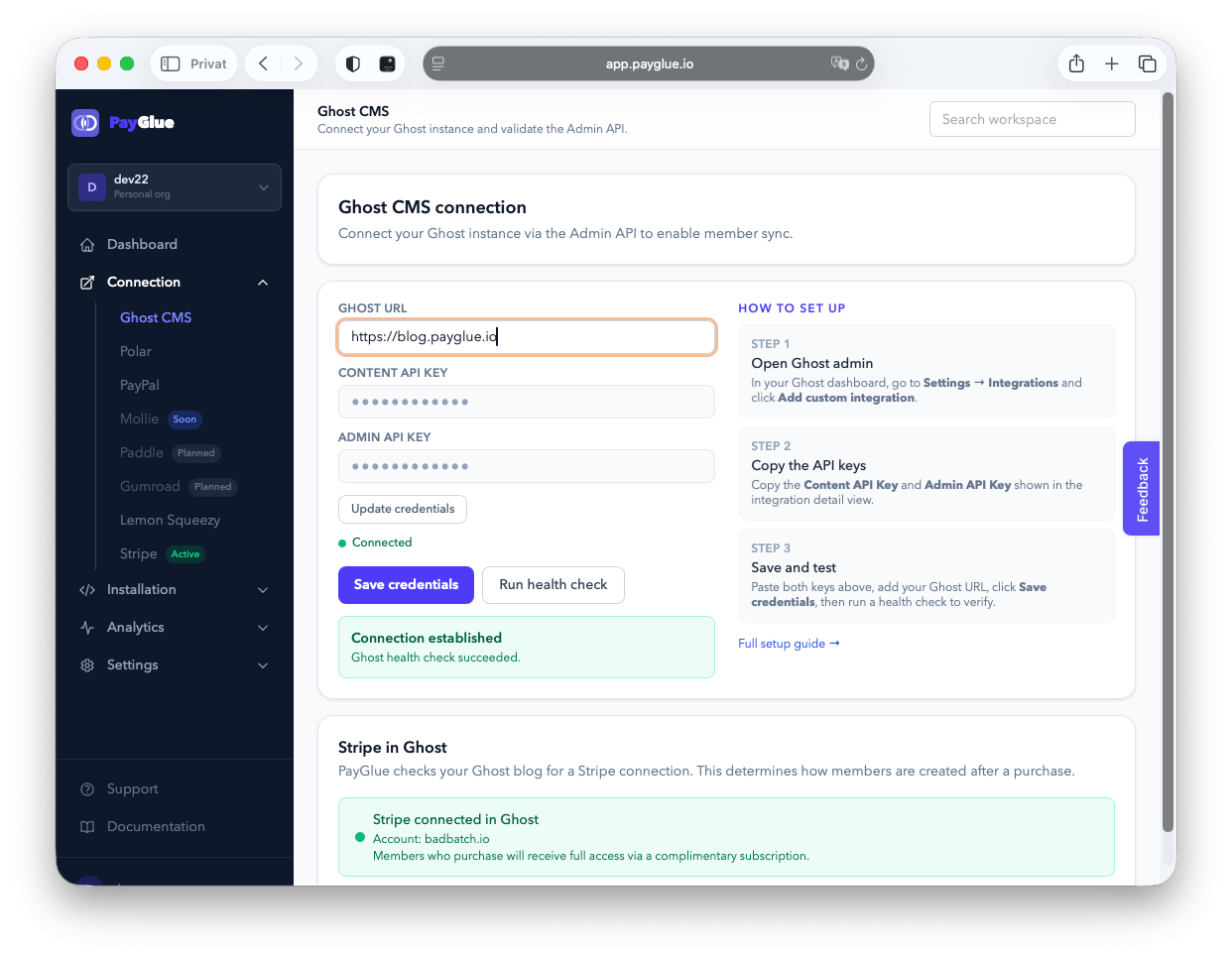
4
Run a health Check
When everything works as expected, you get a green status indicator for Connection Established. If not, check the Admin URL and paste the Admin API key again. PayGlue does not use the Content API key. Why the Admin key is needed and what it is used for: Why PayGlue needs a Ghost Admin API key.
5
Stripe Indicator
Stripe isn’t needed to run with PayGlue. If you already have a stripe account connected, we just show a status indicator; no extra work for you.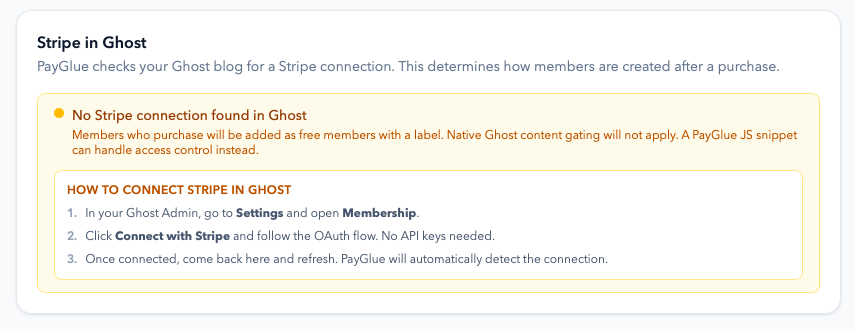
6
Ghost setup completed
Your ghost publication is connected. Now have a look; which payment / MoR provider suits you best?